DeckAssistant-StreamDeck Plugin-AI Assistant-ChatGPT-Plugin for interacting with AI assistants through Stream Deck.

DeckAssistant
No Rating Yet
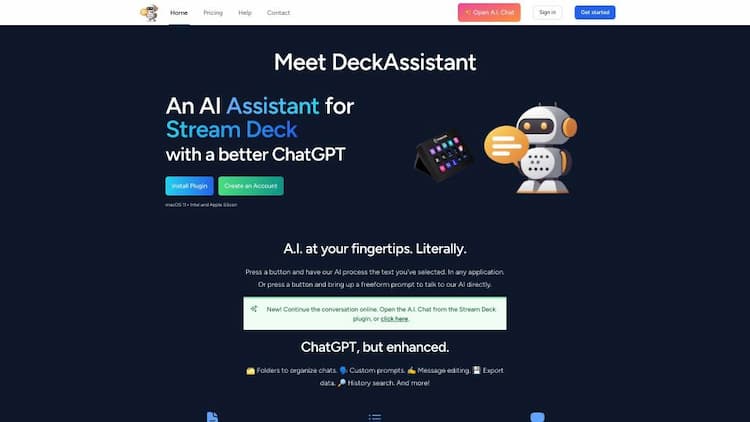
Plugin for interacting with AI assistants through Stream Deck.

Freelance Writing
Content Management
Media Editor
Others
StreamDeck Plugin
AI Assistant
ChatGPT
 PC
PC Overseas Service
 Favorites
Open Website
Product Details
 Product Introduction
DeckAssistant is a Stream Deck plugin that integrates with an AI assistant, allowing users to interact with it through their Stream Deck. Users can select any text in any application, press a button, and have the AI process the text. It also provides a free-form prompt feature that allows users to directly ask questions to the AI. The AI assistant used is ChatGPT, enhanced with features such as folder organization, custom prompts, message editing, search history, and data export. DeckAssistant is compatible with macOS 11+ Intel and Apple Silicon.
 Main Function
DeckAssistant offers a simple and convenient way for Stream Deck users to access AI assistants and perform tasks such as text processing and asking questions. It integrates with ChatGPT and provides many enhanced features including folder organization, custom prompts, message editing, search history, and data export. Users can get started with DeckAssistant by creating an account and copying the API token from the dashboard. They also need to install the Stream Deck plugin and add a button where they can paste the API token to view the AI's actions. Users can configure the prompt buttons by naming them, changing their icons and input prompts, or selecting from available examples. Users can also subscribe to updates on the website or follow the creator of DeckAssistant, Martijn Smit, on Twitter.
How to Use
To start using DeckAssistant, users must follow the steps below:
1. Create a DeckAssistant account and copy the API token from the dashboard.
2. Install the Stream Deck plugin and add a button.
3. Paste the API token on the button to view the AI's actions.
4. Configure the prompt button, including naming it, changing its icon, and selecting input prompts or choosing from available examples.
DeckAssistant Traffic

2.11KMonthly Visits

473Similar Ranking
User Rating
What's Your Impression of DeckAssistant
AI Recommendation

Noty.ai
Noty.ai - Intelligent Meeting Transcription Assistant
4.1 Points
Justification
Premium

Writeseed
Writeseed.com is a powerful writing tool that utilizes AI technology to assist users in quickly creating SEO-optimized content, thereby enhancing their online presence.
Justification
Premium

Android AI Assistant Widget
Android AI Assistant Widget is a smart AI assistant widget.
4.5 Points
Justification
Premium
DeckAssistant Comparison


All resources on this platform are collected from the internet. The platform itself is not involved in content creation.For inquiries such as copyright infringement, report of illegal content, submissions, or business collaborations, please contact the administrator for prompt resolution.Contact Email: ai-apps@ieferry.com
Copyright ©2023 AI-Apps. All rights reserved.